Technical note
Installing PostgreSQL and PgAdmin with Docker
Why choose PostgreSQL and PgAdmin?
PostgreSQL:
PostgreSQL is an extremely robust open-source relational database, offering many advanced features such as JSON support, geolocation, complex queries and much more. Known for its reliability, its compliance with the ANSI SQL standard and its ability to handle large volumes of data, PostgreSQL is used by many companies and organizations around the world for their critical applications.
PgAdmin:
PgAdmin is an open-source web administration interface for PostgreSQL, providing a user-friendly way to create, manage and monitor your PostgreSQL databases. With PgAdmin, users can run SQL queries, import and export data, create backups and much more, all through an intuitive graphical interface.
Installing PostgreSQL and PgAdmin with Docker
To simplify the process of installing and running PostgreSQL and PgAdmin, we will use Docker. Make sure Docker is installed on your system before continuing. If it is not, you can download and install it from the official Docker website.
Here are the steps to install PostgreSQL and PgAdmin with Docker:
1. Pull the PostgreSQL image from Docker Hub:
When pulling an image from Docker Hub, it is always recommended to specify the version. We will pull the latest version, which is 16.2 at the time of writing this article.
docker pull postgres:16.2
2. Create a PostgreSQL container:
We create a Postgres server container by mapping port 5432 of the container to port 5432 of our machine.
docker run --name pgserver-local -p 5432:5432 -e POSTGRES_PASSWORD=$ecureP@ssword -d postgres:16.2
Replace $ecureP@ssword with the password of your choice.
3. Pull the PgAdmin image from Docker Hub:
docker pull dpage/pgadmin4:8.4
4. Create a PgAdmin container:
docker run --name pgadmin -p 5050:80 -e PGADMIN_DEFAULT_EMAIL=[email protected] \
 -e PGADMIN_DEFAULT_PASSWORD=mysecretpassword -d dpage/pgadmin4:8.4
Replace [email protected] with your email address and mysecretpassword with the password of your choice.
After following these steps, you should have PostgreSQL and PgAdmin running on your machine via Docker. You can access PgAdmin by opening a web browser and navigating to http://localhost:5050.
Creating a Docker network to make Postgres and PgAdmin discover each other
We will create a Docker network postgres-network so that the Postgres server and PgAdmin can discover each other easily.
docker network create -d bridge postgres-network
We can add the Postgres server and PgAdmin to the network.
docker network connect postgres-network pgserver-local
docker network connect postgres-network pgadmin
We can inspect the IP addresses of the two containers in the postgres-network network.
docker network inspect --format="{{range .Containers}}{{.Name}}: {{.IPv4Address}}{{println}}{{end}}" postgres-network
Accessing the Postgres server through PgAdmin
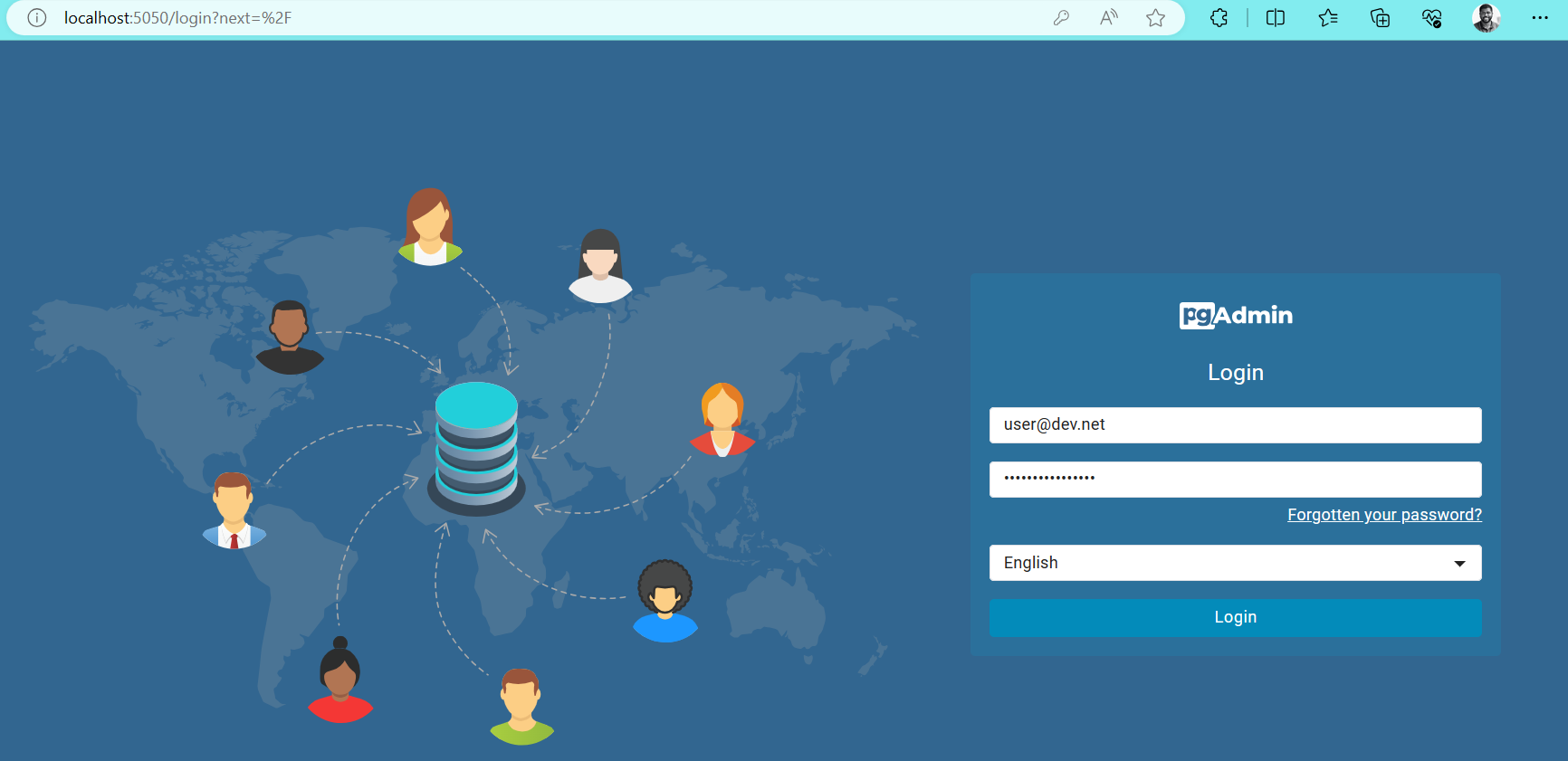
Once the previous steps are done, we access PgAdmin via http://localhost:5050/. On that page we can enter the credentials we defined when creating the PgAdmin container.
After entering the PgAdmin credentials, we can register the Postgres server we created using those credentials.
Once the Postgres server is registered, we can browse all the existing databases and other objects. By default, a maintenance database named postgres is created on the server.
Conclusion
By using Docker to install PostgreSQL and PgAdmin, developers can quickly set up a local development environment for database management. PostgreSQL offers a robust solution for storing and manipulating data, while PgAdmin simplifies database administration and monitoring through a user-friendly interface.