Technical note
Customizing Your Bash Terminal Prompt
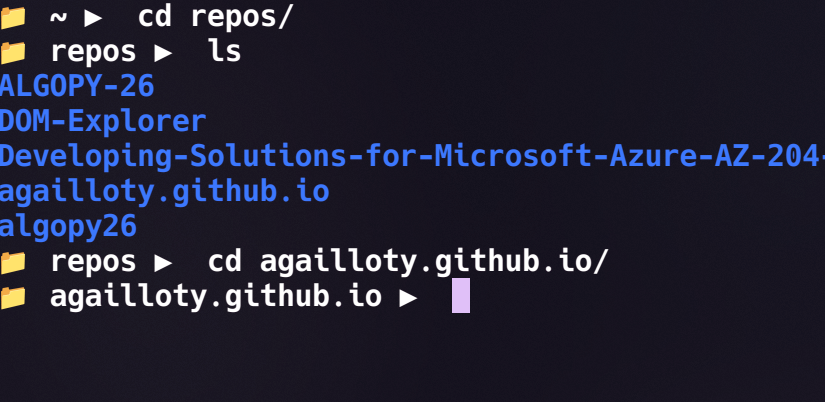
When I work, I like to have as few distractions as possible. It may surprise some, but seeing the full path of the directory I am in inside VS Code bothers me. Fortunately, it is entirely possible to change what the terminal displays when you work with bash.
In this short article I will show you a few tricks to customize the information displayed in your bash prompt.
Understanding the PS1 variable
The bash prompt is controlled by the PS1 environment variable (Prompt String 1). This variable defines what appears before your cursor in the terminal.
To see your current configuration, type:
echo $PS1
You will probably see something like:
\u@\h:\w\$
Prompt customization codes
Here are the most useful codes for customizing your prompt:
\u: Username\h: Host name (computer)\w: Full path of the current directory\W: Current directory name only (what we want)\$: Displays$for a regular user,#for root\t: Current time (HH:MM:SS)\d: Current date\n: New line
Displaying only the current directory
To display only the current directory instead of the full path, simply replace \w with \W in your PS1.
Temporary change
To test it right away, type in your terminal:
PS1='\W\$ '
Your prompt will now display only the current directory name. For example:
- Instead of:
user@computer:~/Documents/projects/myproject$ - You will see:
myproject$
Minimalist configuration
Personally, I use this even simpler configuration:
PS1='\W > '
Which gives a very clean prompt:
myproject >
Making the changes permanent
The changes above are temporary and disappear when you close the terminal. To make them permanent, you need to edit your bash configuration file.
Steps for a permanent configuration
- Open your
.bashrcfile (located in your home directory):
nano ~/.bashrc
- Add your PS1 configuration at the end of the file:
# Prompt customization
PS1='\W > '
Save and close the file (Ctrl+O then Ctrl+X with nano)
Reload the configuration:
source ~/.bashrc
Your custom prompt will now be applied to every new terminal session.
Other useful customizations
Adding colors and formatting
You can enrich your prompt with colors and various text styles using ANSI codes.
Color codes
PS1='\[\033[01;32m\]\W\[\033[00m\] > '
This will display the directory name in green.
Useful color codes:
\[\033[00;31m\]: Red\[\033[00;32m\]: Green\[\033[00;33m\]: Yellow\[\033[00;34m\]: Blue\[\033[00;35m\]: Magenta\[\033[00;36m\]: Cyan\[\033[00;37m\]: White\[\033[00m\]: Reset all styles
Making the text bold
To make the folder name bold, use the code 01:
PS1='\[\033[01m\]\W\[\033[00m\] > '
The 01 enables bold mode. You can also combine bold and color:
PS1='\[\033[01;34m\]\W\[\033[00m\] > '
This displays the directory in bold blue.
Other formatting styles
Available style codes:
\[\033[01m\]: Bold (or high intensity)\[\033[02m\]: Dim\[\033[03m\]: Italic (not supported by all terminals)\[\033[04m\]: Underlined\[\033[05m\]: Blinking (slow)\[\033[07m\]: Inverted (swaps background and text colors)\[\033[00m\]: Reset all styles
Popular combination examples
Bold cyan directory:
PS1='\[\033[01;36m\]\W\[\033[00m\] > '
Bold green directory with colored arrow:
PS1='\[\033[01;32m\]\W\[\033[00m\] \[\033[01;34m\]>\[\033[00m\] '
Underlined yellow directory:
PS1='\[\033[04;33m\]\W\[\033[00m\] > '
Modern style with emojis:
PS1='📁 \[\033[01;35m\]\W\[\033[00m\] ▶ '
Two-line prompt
PS1='\W\n> '
This places the cursor on a new line:
myproject
>
Displaying the time and directory
If you want to keep track of the time:
PS1='[\t] \W > '
Result: [14:23:45] myproject >
Conclusion
Customizing the bash prompt is simple yet powerful. By using \W instead of \w, you get a minimalist display that reduces distractions while keeping the essential information: where you are.
Feel free to experiment with different combinations to find the prompt that suits you best!